Tampilkan postingan dengan label WINDOWS 8. Tampilkan semua postingan

Trick to Customize Folders With Different Colors in Windows 7/8 : Windows Trick 2015

Posted by Unknown Kamis, 23 Januari 2014 0 komentar
 
Friends are you fed up of seeing same regular folders, if yes then here is a solution for you all ...  Now you can change the color of the folder with whatever color you like by just downloading a simple software and follow few simple steps as mentioned below.

1.Download and install the software Download from here Folder Colorizer  

2. After installing the software, simply right click on any folder you wish to customize then right click on folder, you will now see a new option in the context menu  Colorize 
 
3.Now just go to that option and one sub menu will appear. Now choose any color you want to assign to this folder.


4. You are done with it .. Now just set different colors of your choice to folders by this way you will be able to easily organize folders in any of your drive.

Baca Selengkapnya ....

Trick to Enable Administrator Account in Windows 8/Best Windows 8 Tricks 2015

Posted by Unknown Senin, 30 September 2013 0 komentar
Friends,

 Sharing with you all trick which will help you to enable administrator password in windows 8 in just few steps as mentioned below.

1.  Right click on my computer and then click on Manage.Enable-administrator-account-in-Windows 8


2. Now click on Local users and Groups and then click on Users.


3. Right click on administrator account and then give a click on Properties. A dialog box will appear on your computer screen. Now uncheck the Account is disabled option from the appeared dialog box.

4. Right after above step, Click on Apply then given a click on OK button.


5. Now you are done with your work. Enjoy


Baca Selengkapnya ....

Microsoft Said:Hack Us And Get $100,000 Award

Posted by Unknown Jumat, 28 Juni 2013 0 komentar
Friend's i think you all know that Window 8.1 which is the enhanced version of Window 8 is launched on 27 June 2013.And Window 8.1 is coming with some great features which is not in the Window 8.Like start button in homepage etc.

When an operating system is launched,The company first check its vulnerabilities.


Now Microsoft wants white hats and blue hats to find out the vulnerabilities. Qualifying submissions and accompanying defensive ideas will also grant the blue hat bonus worth up-to 50,000 $ also those who will point out the critical vulnerabilities in Microsoft's Internet Explorer present in Windows 8.1 update will be awarded 11,000 $ .

So this is the great announcement i see in the official blog of Microsoft.

SEE ALSO:

Baca Selengkapnya ....

Windows 8 tricks :Disable the lock screen

Posted by Unknown Sabtu, 08 Juni 2013 0 komentar
Windows 8 tips

If you like your PC to boot just as fast as possible then the new Windows 8 lock screen may not appeal. Don't worry, though, if you'd like to ditch this then it only takes a moment.

Launch GPEdit.msc (the Local Group Policy Editor) and browse to Computer Configuration > Administrative Templates > Control Panel > Personalisation. 

Double-click "Do not display the lock screen", select Enabled and click OK
.
Restart and the lock screen will have gone.

Baca Selengkapnya ....

Windows 8 Enterprise Evaluation Free Download and Guide to Install

Posted by Unknown Senin, 29 April 2013 0 komentar

Is Windows 8 free download possible? Do you know that Microsoft offers a free 90-day trial edition of Windows 8 operation system?
The Windows 8 Enterprise 90-day evaluation is now available to download for free at Microsoft’s Evaluation Cent

Image a-1: Windows 8 Logo. Windows 8 is a trademark of Microsoft Corp.
If you’re dubious about upgrading or buying the Windows 8, maybe you can try to download and use it. But the description of the page says: “It is intended for evaluation purposes only and cannot be used for productive business or personal purposes”, So, it is highly recommended to real the details, you’ll get a better understanding.
Although the Windows 8 Enterprise evaluation is provided specifically for developers and IT professionals to test their software and hardware on the final version of Windows 8 Enterprise, anyone can download it even you are not a developer or IT professional.
In this article, I will show you how to download Windows 8 trial edition and make a Installation Disk of Windows 8. You can follow the steps I show you below.
Windows 8 Free Download 90-Day Trial Edition
Before you download Windows 8, you should check out your system specs to see if it meets the basic system requirements for Windows 8, this step will make sure you use the Windows 8 joyfully.
Image b-1: The bottom of the Download Windows 8 Enterprise Evaluation page.
You can goto the the Evaluation Center’s Download Windows 8 Enterprise Evaluation page to read more detals, and then scroll down to the bottom of the page, you will see two download links (as shown as Image b-1). One is for 32-bit version, another is for 64-bit version. Select the version you want to download by clicking on the link to get started.
Or I have put the official download links below.
Software Name
Windows 8 Enterprise Evaluation
Version
8 (2012/10/16)
Author
Microsoft
Official URL
Type
90-Day Trial Edition
Operating System
Windows 8
Language
English, French, German, Italian, Portuguese, Chinese (Simplified), Chinese (Traditional), Korean, Japanese, and Spanish.
Windows 8 Free Download 90-Day Trial Edition

CLICK HERE

The direct links are official Windows 8 free download. If the links are borken, please contact with us, we will fix the Windows 8 trial edition download link as soon as possible.
Steps to Windows 8 Free Download
(1) Login to Microsoft
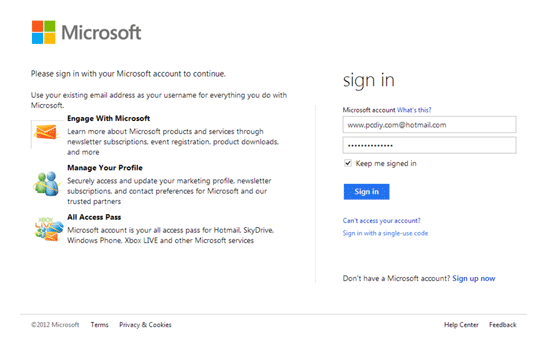
Image b-2: Microsoft sign in page. Windows 8 free download
You need a Microsoft account to sign in to the next step. If you have a Hotmail account, or Microsoft Passport, you already have a Microsoft account. Fill in the fields with your account and password, and then click Sign in button.
(2) Fill out the online form
Image b-3: Online application form to Windows 8 free download.
If you click on Cancel, the page will redirect you to Evaluation Center’s homepage. So, take 5 minutes to fill out the online form, and then click on Continue button. Once done, the download will start automatically.
Image b-4: Chrome’s Download Manager
1.    Internet Explorer
If you use Internet explorer, you will be prompted to install Download Manager begins your download.
2.    Chrome
If you use Chrome, built-in Download Manager will begin your download.
Windows 8 free download filename:
9200.16384.WIN8_RTM.120725-1247_X64FRE_ENTERPRISE_EVAL_EN-US-HRM_CENA_X64FREE_EN-US_DV5.ISO
Size: 3.3 GB
(3) Make an installation disk
Image b-5: A ISO image of the Windows 8 trial edition
When the downloading process is completed, right-click on the file, click on Burn disk image.
Image b-6: Burn the Windows 8 free download image to blank DVD
Insert a blank DVD to your DVD burner drive, and then click on Burn button.
Image b-7: Windows 8 installation disk
After having burned the Windows 8 image file to the disk, you can use the disk to install Windows 8 Enterprise Evaluation now.


Baca Selengkapnya ....

HOW TO ENJOY ANDROID APPS ON PC

Posted by Unknown Rabu, 17 April 2013 0 komentar

Friends, craze of android applications is on the sky. These are making the people crazy. 
There are lots of useful android apps also and you can enjoy these useful apps on your android phone only, but with the help of this trick on TECHNOWORLD you can enjoy android apps on your windows pc’s, here are some simple steps which will help you to make this trick working, 

so let’s start...


STEP 1-
First of all download 
BlueStack app on your windows pc .
( DOWNLOAD BLUESTACK FOR PC FROM HERE)


STEP 2.-
Now install it on your pc. And just run it.


STEP 3.-
Now click on any 
.apk file present on your pc.


Enjoy & share with your friends...


Baca Selengkapnya ....

HOW TO ACTIVATE YOUR WINDOWS 8 TO BE FULLY GENUINE

Posted by Unknown Kamis, 11 April 2013 0 komentar

First of all you will open your command prompt as administrator by pressing the "windows key +X" key together ,have you opened the command prompt?Now type exactly what you see below (Press enter after each line)
slmgr /upk
slmgr /ipk NG4HW-VH26C-733KW-K6F98-J8CK4
slmgr /skms lunar21.no-ip.org:80
slmgr.vbs -ato

Have you completed writing the above command? If you’re done, restart your pc and voila, you have successfully activated your windows 8 to be fully genuine. Now enjoy your activated windows 8 and be limited no more…

This trick was tested on Windows 8 Professional Retail. Enjoy yourself and activate yours today.

Baca Selengkapnya ....

Trick to put commonly used folders and functions on the Desktop/Windows 8 tricks

Posted by Unknown Jumat, 18 Januari 2013 0 komentar

Trick to put commonly used folders and functions on the Desktop

The default desktop in Windows 8 is pretty bare. If you would like ready access on the desktop to some commonly used features, here is how:
  •     Go to the Desktop
  •     Right-click an empty spot on the Desktop
  •     Select “Personalize”
  •     On the upper left of the dialog box, click “Change desktop icons”.
  •     In the dialog that opens (shown below) put a check by the icons you want on the desktop. Control Panel is one I like to have
  •     Click “OK” and close the Personalization window


Change Windows 8 desktop icons.


Baca Selengkapnya ....

Best Windows 8 wallpapers 2013/ Top wallpapers for windows 8

Posted by Unknown Selasa, 15 Januari 2013 0 komentar

Hello friends,

Today i'm gonna share some awesome wallpapers for windows 8.


Scary wallpapers


Baca Selengkapnya ....

How to shut Down Windows 8 quickly

Posted by Unknown Senin, 24 Desember 2012 0 komentar
Hello friends ..

Shut down in Windows 8 the usual way involves multiple steps. You have to open the Charms bar, click "Settings", then "Power", and finally "Shut down". which is quit irritating  when ever you in hurry. Here is a easy  way that how to create a desktop shortcut that will reduce these four steps to just one.


  •  Go to the Desktop
  •  Right-click an empty spot on the Desktop
  •  Choose “New-Shortcut”
  •  Go to the line labelled “Type the location of the item…”
  •  Enter:  shutdown.exe -s -t 0 (The last  character is "zero".)
  •  Click “Next”
  •  Type a name like Shutdown
  •  Click “Finish”

Once the shortcut is created, you can pin it to the Taskbar:

    Right-click the shortcut
    Click “Pin to Taskbar”

You can also place the shortcut on the Metro (Modern) interface:

    Right-click the shortcut
    Click “Pin to Start”

Start in this case refers to the Start Screen and places a copy of the shortcut along with the tiles on the Metro interface.


Baca Selengkapnya ....

Easy way to access all the settings in Windows 8

Posted by Unknown Jumat, 21 Desember 2012 0 komentar
 Quick and easy way to access all the settings in Windows 8
 

Hello friends 

One of the annoyances of Windows 8 is trying to find all the various system settings. Here is a way to make them readily available in one big list.

  •     Go to the Desktop
  •     Right-click an empty spot on the Desktop
  •     Choose “New-Folder”
  •     Give the folder this name:
  •     All Settings .{ED7BA470-8E54-465E-825C-99712043E01C}
  •     Open the folder to see a complete list of settings..


enjoy the easy way to access windows 8  settings at one go

Baca Selengkapnya ....

Direct download links for Windows 8

Posted by Unknown Minggu, 02 Desember 2012 0 komentar

Hello friends,

Here is for you all a Direct download links for Windows 8 

Windows 8 Developer Preview with developer tools English, 64-bit (x64): DOWNLOAD(4.8 GB)

Windows 8 Developer Preview English, 64-bit (x64): DOWNLOAD (3.6 GB)

Windows 8 Developer Preview English, 32-bit (x86): DOWNLOAD (2.8 GB)
Summary: Windows 8 download full version from Microsoft official site.

Windows 8 Professional RTM x86/ x64 Full Edition ISO download has been leaked to public a week before the actual release of the product, which is scheduled in mid August, 2012. The RTM version of Windows 8 is the actual full version of the OS which has been fully tested and given to OEM partners for integration.
Both the 32bit and 64bit versions of Windows 8 final release has been leaked to file sharing sites. This full edition and final release version of Windows 8 can be activated with a retail product key or volume licensing key. The product keys of Windows 8 has also been leaked to public, and with these serial keys you can install Windows 8. But one problem is that windows 8 installation cannot  be activated unless you buy a valid product key or an activation crack of Windows 8 RTM is available.
Below are the checksum information of the leaked Windows 8 Professional editions.

1. MICROSOFT.WINDOWS.8.PROFESSIONAL.RTM.X86.ENGLISH.DVD-WZT 
  • BUILD: 6.2.9200.16384.WIN8_RTM.120725-1247
  • FILE NAMEA: Windows_8_Pro_EN-US_x86.ISO
  • SIZE: 2,632,460,288 byte
  • SHA-1: B30B7D770F047CF427E836ABC048501EFF8A1FAC
  • MD5: 99C94934E53B4E28E955D4FCB06CAAA8
  • CRC: A13474A9
2. MICROSOFT.WINDOWS.8.PROFESSIONAL.RTM.X64.ENGLISH.DVD-WZT
  • BUILD: 6.2.9200.16384.WIN8_RTM.120725-1247
  • FILE: Windows_8_Pro_EN-US_x64.ISO
  • SIZE: 3,581,853,696 byte
  • SHA-1: E63C1D3733532ABC7AB28F3D61526E361E80271A
  • MD5: 7A10316A79A543F2BF4953A4332B4323
  • CRC: 5D7BB5F4
Both the 32bit and 64 bit version are available in the file sharing or torrent websites. You can can download the final RTM versions of Windows 8 from torrent sites by searching the above file names (1 & 2)

Baca Selengkapnya ....

Download Free Windows 8/Windows 8 Consumer Preview

Posted by Unknown Senin, 25 Juni 2012 0 komentar
Hello friends,

Experience the Windows 8 beta version, to feel and outlook the next-generation Microsoft Windows System:Windows8.

Here we will share the lastest Windows 8 download, you can downlaod it free:.

1) Download the windows 8

2) Copy the file into the Pen drive

3) Restart the system den press&  delete button to change booting system

4) Now run the setup


32 bit:  http://go.microsoft.com/fwlink/?LinkId=251533
Sha1: 0xD76AD96773615E8C504F63564AF749469CFCCD57

64 bit: http://go.microsoft.com/fwlink/?LinkId=251532
Sha1: 0x8BED436F0959E7120A44BF7C29FF0AA962BDEFC9 

If you need other language version of Windows Release Preview: check here

Product Key:
TK8TP-9JN6P-7X7WW-RFFTV-B7QPF


Windows 8 Consumer Preview Download:


Minimum system requirements

1 GHz or faster 32-bit (x86) or 64-bit (x64) processor

16 GB available hard disk space (32-bit) or 20 GB (64-bit)

1 GB RAM (32-bit) or 2 GB RAM (64-bit)

DirectX 9 graphics device with WDDM 1.0 or higher driver

Taking advantage of touch input requires a screen that supports multi-touch

To run Metro style Apps, you need a screen resolution of 1024 X 768 or greater

Before you download you should know, this is just Consumer preview (similar to Beta but more stable than beta a little), so I recommend don’t make him be your first system, you can install it in the Virtual Machine, like Virtual box, VMware.


Baca Selengkapnya ....

Get Rid of Windows 8 Consumer Preview/ Get back windows 7 OS

Posted by Unknown Selasa, 29 Mei 2012 0 komentar
Hello friends ,

Here is a solution for your question how to get back your  windows 7 back , when you have installed windows 8 consumer preview...

As we all know that  you can not uninstall win 8 directly from  system, The only way for you is to format the system drive and install Windows 7 again. In that case, all your settings, and all your data in system driver will be format as well. So please do data backup before you doing so.

But if you installed Windows 8 Consumer Preview in other drive, excluding original system drive, then there is a way for you to get rid of Windows 8 Consumer Preview. Just follow the instructions as bellow:

Stage 1: Remove Windows 8 Consumer Preview from boot loader

You will need a free piece of software called EasyBCD available here.

*Once installed, open the software (*Note:you will need to be an administrator). 

*Click ‘Edit Boot Menu’ from the sidebar.

*Then select the ‘Windows 8 Consumer Preview’ and click ‘Delete’.

* Next tick the checkbox for your previous version of Windows to load that by default. Now click ‘Save Settings’.

*Next, from the sidebar, click ‘BCD Backup/Repair’ and select ‘Re-create/repair boot files’ and then click ‘Perform Action’.

You should now have removed Windows 8 Consumer Preview from the boot loader. It is best to check this has worked by restarting your computer before you continue. If your computer makes no mention of Windows 8 Consumer Preview when starting up then you can move onto stage 2. If your computer still boots with Windows 8 Consumer Preview as an option DO NOT move onto stage 2.

Stage 2: Remove Windows 8 Consumer Preview Partition

*Open ‘Create and format hard disk partitions’ (search for it in the start menu). 

*Then select and right hand click on the Windows 8 Partition. 
(Note:Make sure you definitely have the correct partition selected, double check by looking at the side). 

*Click ‘Delete Volume’ and then click ‘Yes’ to continue. 

*Then right hand click on the free space and click ‘Delete Partition’ and then ‘Yes’ to confirm the delete. 

*You should now see the space labelled ‘unallocated’. 

*Select the Windows drive (usually C) and right hand click ‘Extend Volume’. Click ‘Next’, and assuming you want to take up all the unallocated space click ‘Next’ again and finally click ‘Finish’ to complete the operation.

You have now completely removed the Windows 8 Consumer Preview.

Baca Selengkapnya ....
Trik SEO Terbaru support Online Shop Baju Wanita - Original design by Bamz | Copyright of android jones.